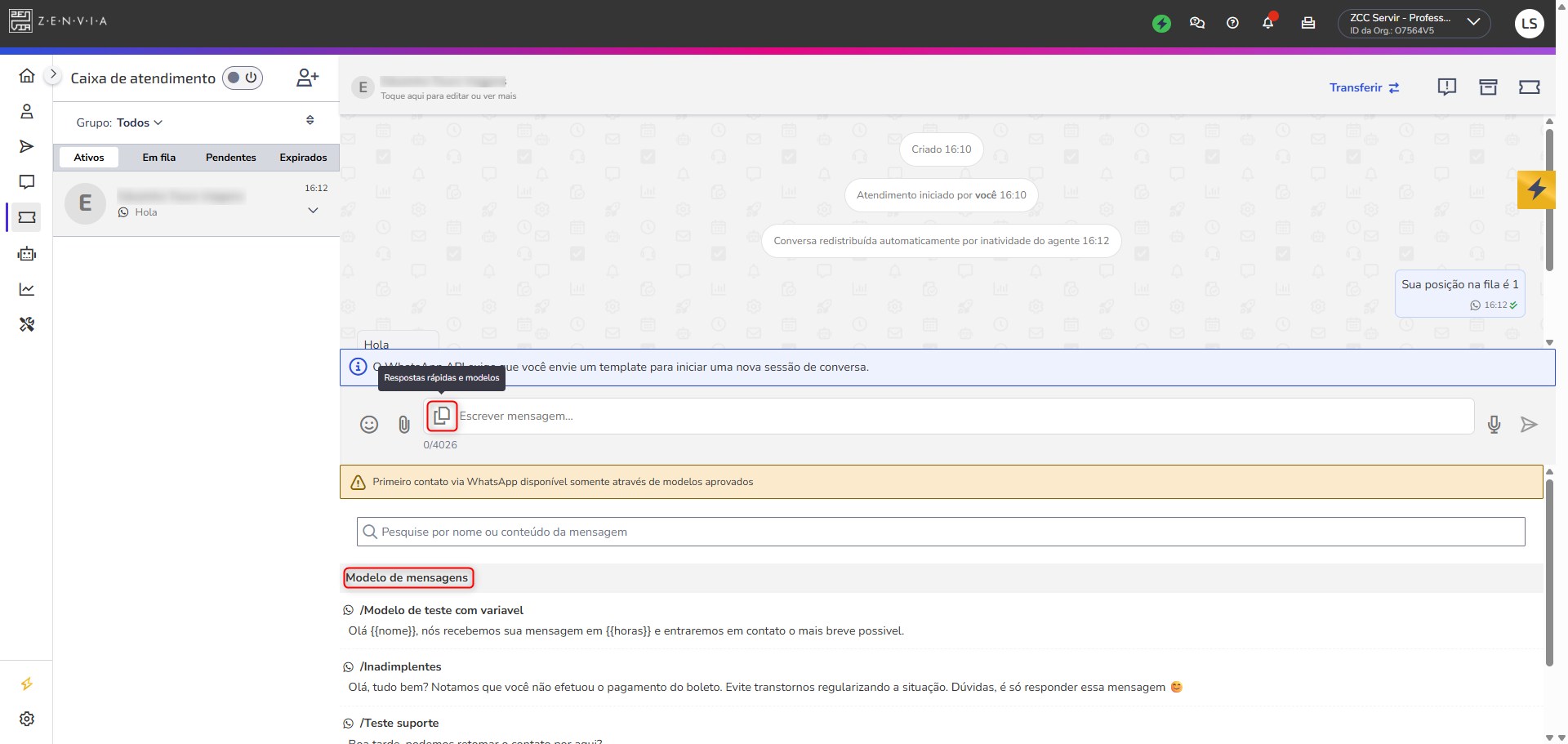
In this article, you’ll learn how to recontact a customer via WhatsApp from a ticket, creating a new support conversation that is automatically linked to the original ticket.
This feature is available for Agents, Advanced Agents, Operators, and Administrators who use the Support service module in Zenvia Customer Cloud.
💡Use this feature when you need to:
🎫 Recontact a customer regarding an existing ticket.
🕘 Continue an interaction without losing the conversation history.
💬 Proactively start a new support conversation via WhatsApp.
⌛ Re-engaging a customer after a chat has timed out due to inactivity.
This flow creates a new conversation that is linked to the original ticket. It does not reuse previous conversations.
Prerequisites
Before you begin, make sure that:
- The ticket is saved.
- The requester’s contact has a registered phone number.
- The ticket is not in Completed status (Resolved, Closed, or Canceled).
- At least one WhatsApp template (HSM) is configured for the WhatsApp number used.
- The customer must have contacted support via WhatsApp at least once in the Support service module.
How to recontact a customer via WhatsApp using a ticket
1. From the main menu, go to: Support service > Tickets.
2. Click the ticket you want to use for the recontact.
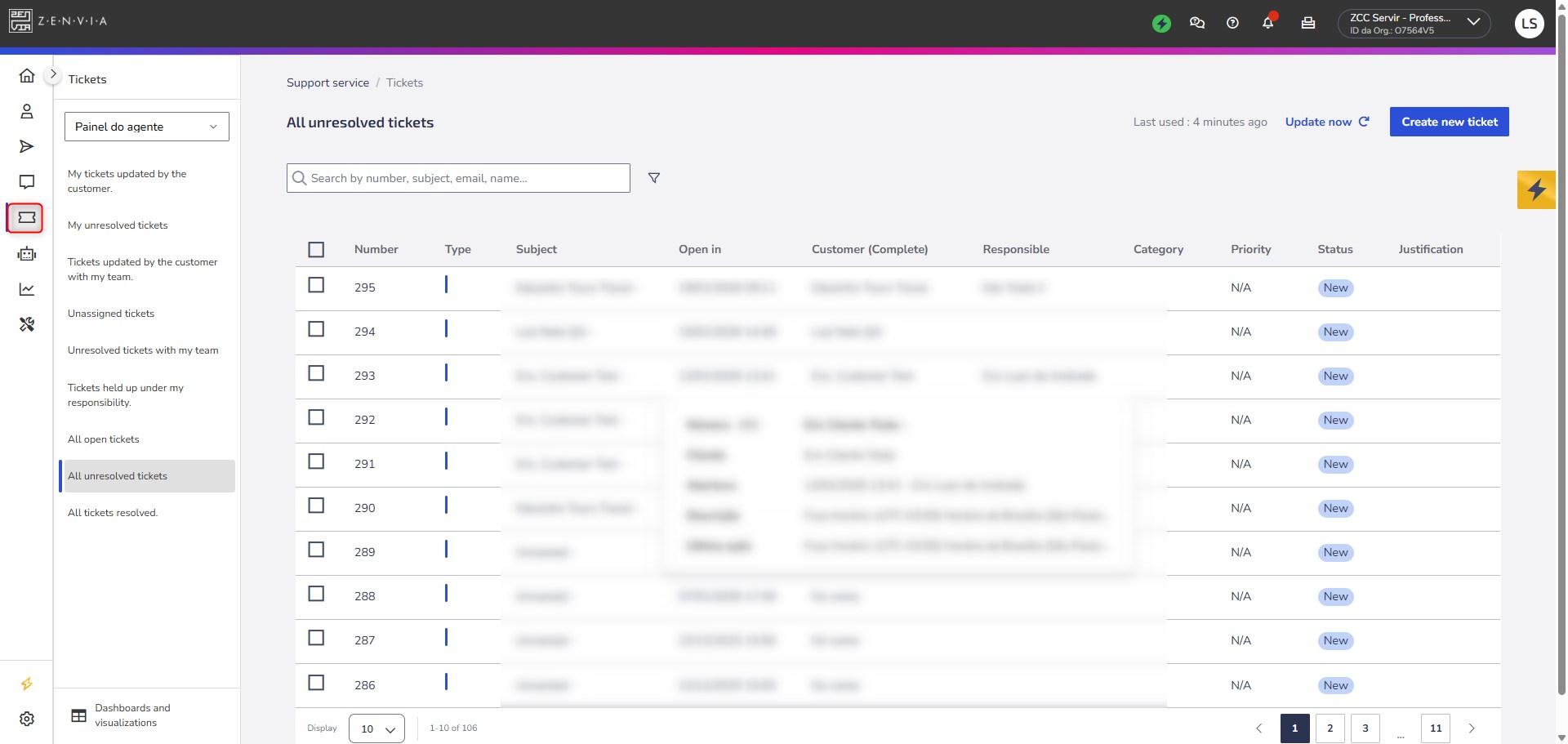
3. Click the message icon next to the contact’s name.
4. Select the Start a support conversation option.
A new tab will automatically open with the new conversation. It will be created as an active chat and will already be linked to the original ticket.
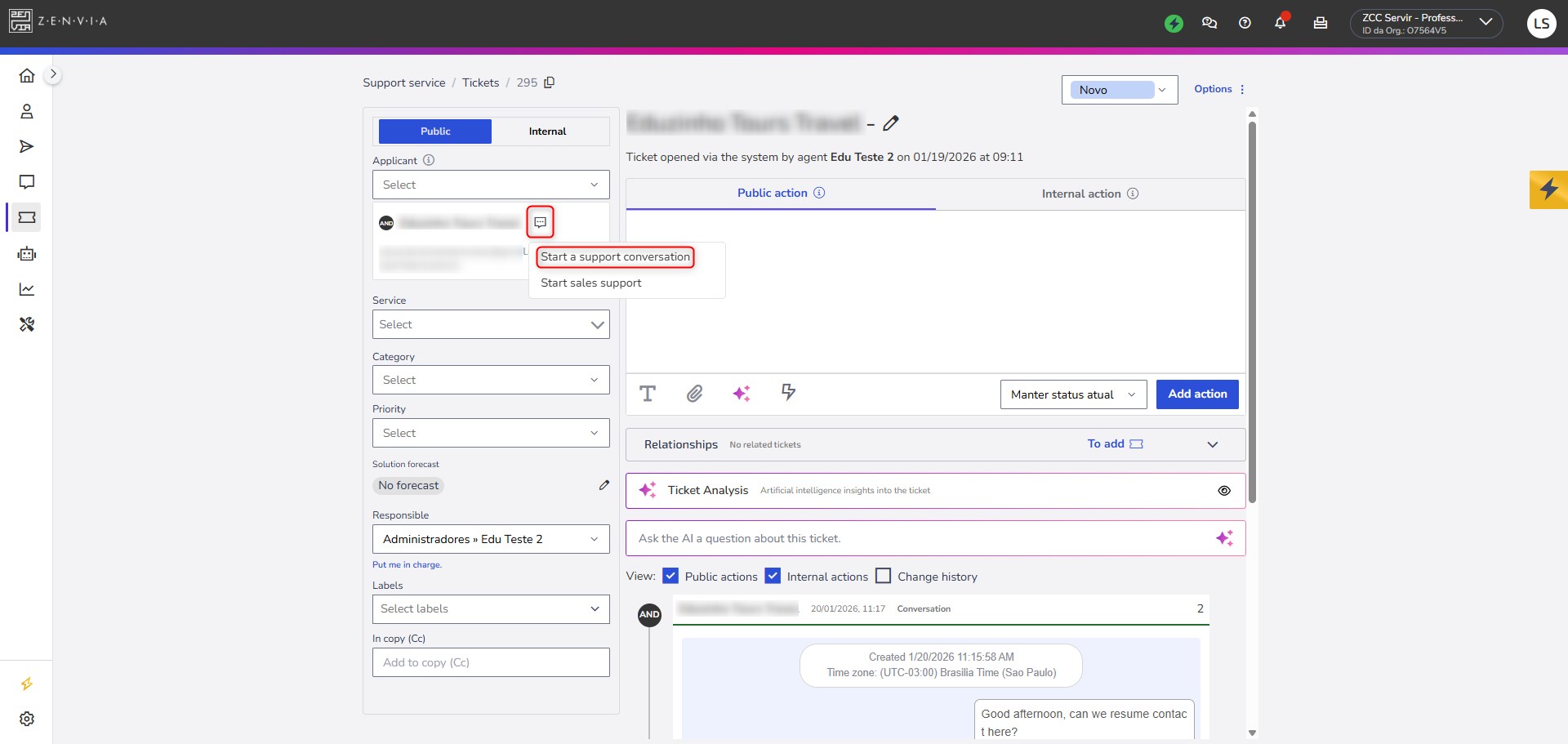
Template sending (required)
Before continuing, it’s important to understand:
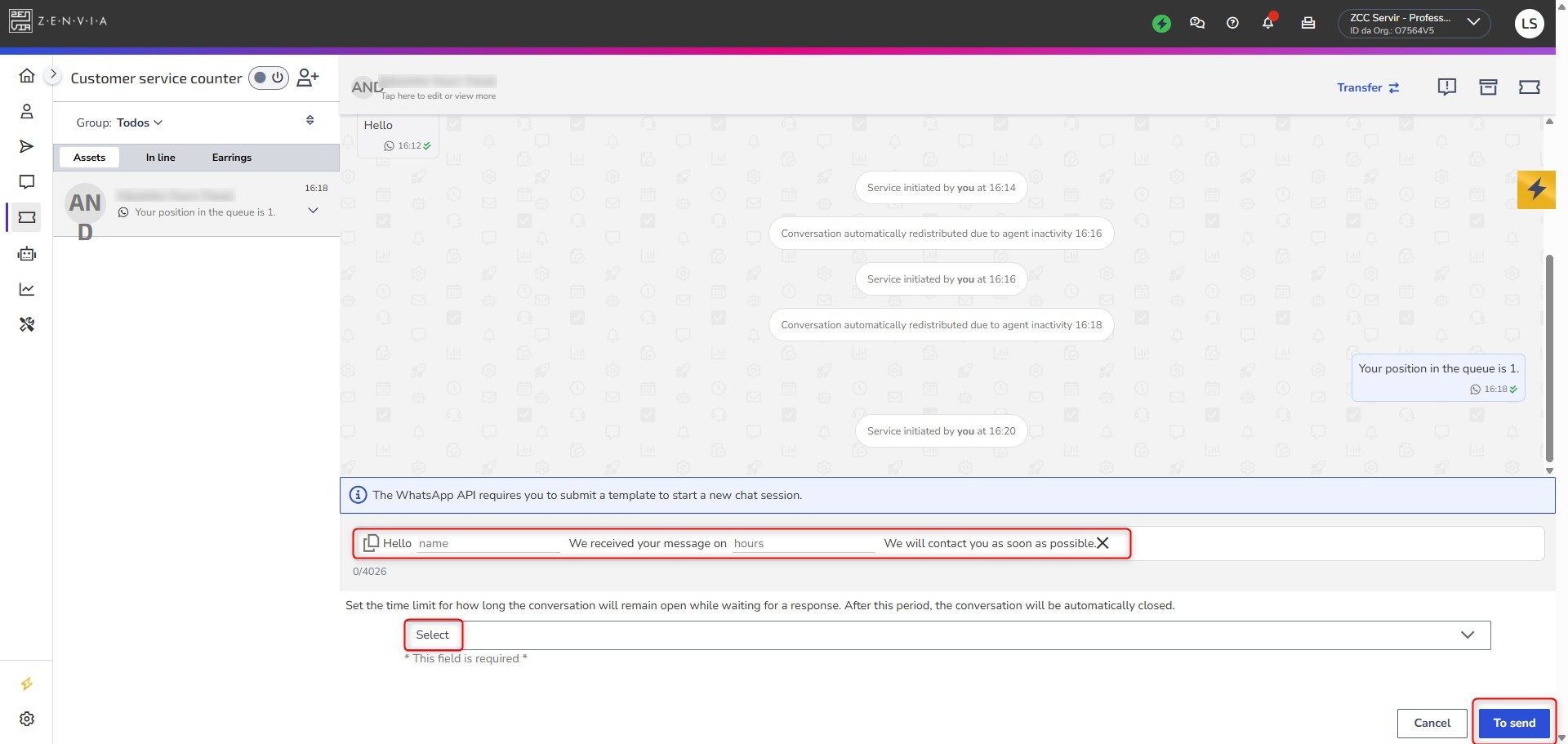
- Sending a WhatsApp template (HSM) is required to start this conversation.
- Until the template is sent, the message input field will remain locked.
- This is a Meta (WhatsApp) policy and cannot be changed.
- If no template is configured for the WhatsApp number, the message cannot be sent and the support interaction cannot continue through this channel.
In the chat screen:
1. Select a template in the message input field.
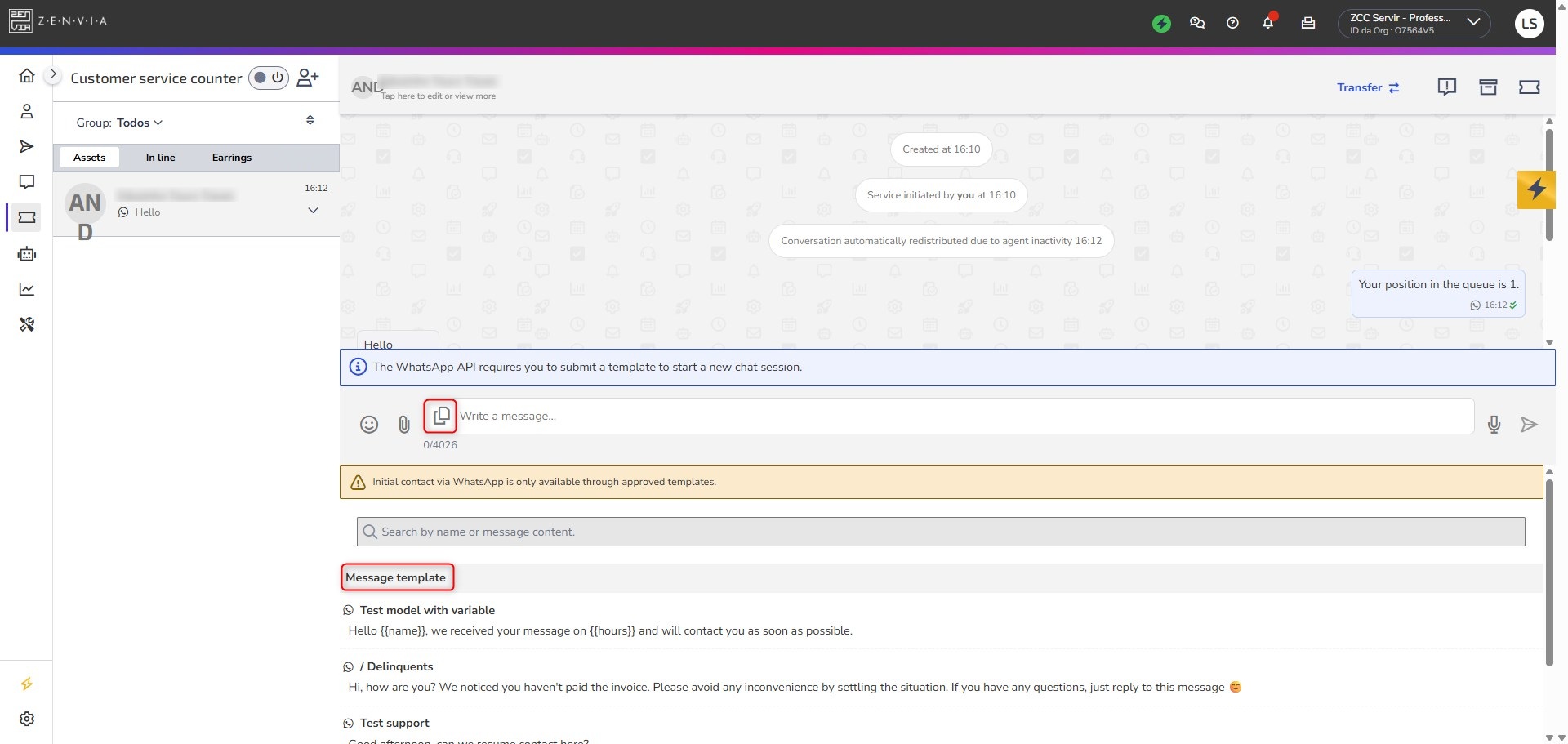
2. Set the time limit for the customer’s response.
3. Review the information.
4. Click Send.
After closing the conversation, the history will be automatically available within the ticket. In other words, no manual linking is required.
🔗 The link between the conversation and the ticket is automatic and permanent.
🚫 It’s not possible to remove this conversation from the original ticket.
🎧 This flow is exclusive to Support service.
Learn more